Creating Box Types as a 3PL Company in 3PLICITY
Overview
The Box Types section in 3PLICITY allows 3PL companies to create and manage the packaging configurations used during the fulfillment process. These box types are later used when packing orders, generating shipping labels, and validating carrier shipment requirements.
Each box configuration stores operational information such as dimensions, weight limits, item capacity, barcode identifiers, and packaging costs.
Depending on the carrier service selected during fulfillment, certain box size restrictions may apply. Some carriers only allow specific package dimensions or weight ranges for certain shipping methods. Selecting a box that exceeds the allowed dimensions or does not match the packed product size may prevent shipping label generation. For this reason, it is recommended to configure accurate box sizes that reflect the real packaging used in warehouse operations.
Accessing the Box Types Section
Log in to 3PLICITY using a Company account.
From the left navigation menu, click Inventory.
Select Box Types from the Inventory submenu.
The Box Types screen displays all previously created box configurations available for fulfillment operations.
If no boxes have been created yet, the section will appear empty and display an Add Box Type button.
Creating a New Box Type
Open the Creation Form
Click Add Box Type.
A modal window opens with the box configuration form.
Box Type Information
The form includes the following fields:
Box Name
Used to identify the packaging configuration during fulfillment.
Example:
Small Box
Medium Box
Large Box
Barcode (Optional)
This field supports:
GTIN
UPC
Custom internal barcode values
The barcode can be entered manually or scanned directly using a barcode scanner.
To scan a barcode:
Click inside the Barcode field.
Scan the barcode using a connected scanner device.
The code is automatically inserted into the field.
This functionality is especially useful for warehouses using scanner-assisted or automated fulfillment workflows.
Length
Defines the box length.
Example:
12
Width
Defines the box width.
Example:
8
Height
Defines the box height.
Example:
6
Max Weight (lbs)
Defines the maximum supported shipment weight for the box.
Example:
5 lbs
Max Items
Defines the maximum number of items recommended for the box.
Example:
10 items
Cost ($)
Defines the packaging cost associated with using the box.
Example:
$2.50
This value can later be used for operational or fulfillment cost calculations.
In Stock
Defines the quantity of physical boxes currently available in the warehouse.
Example:
150
Warehouse staff can update this value as packaging inventory changes.
Saving the Box Type
Complete all required fields.
Click Add Box Type.
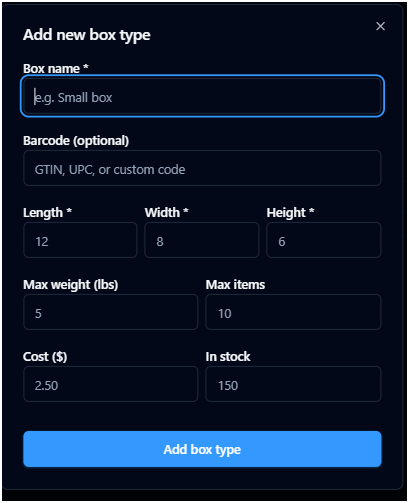
The new box configuration is immediately added to the Box Types section.
Viewing Box Type Cards
After creation, the system displays the new box as a card containing its operational information.
Each box card includes:
Box Name
Dimensions (L × W × H)
Maximum Weight
Maximum Item Capacity
Packaging Cost
Available Stock Quantity
Example:
Large Box
Dimensions (L × W × H)
60″ × 45″ × 40″
Max Weight
50 lbs
Max Items
50 items
Cost
$10.00
In Stock
143 boxes
Managing Existing Box Types
Each box card includes the following management options: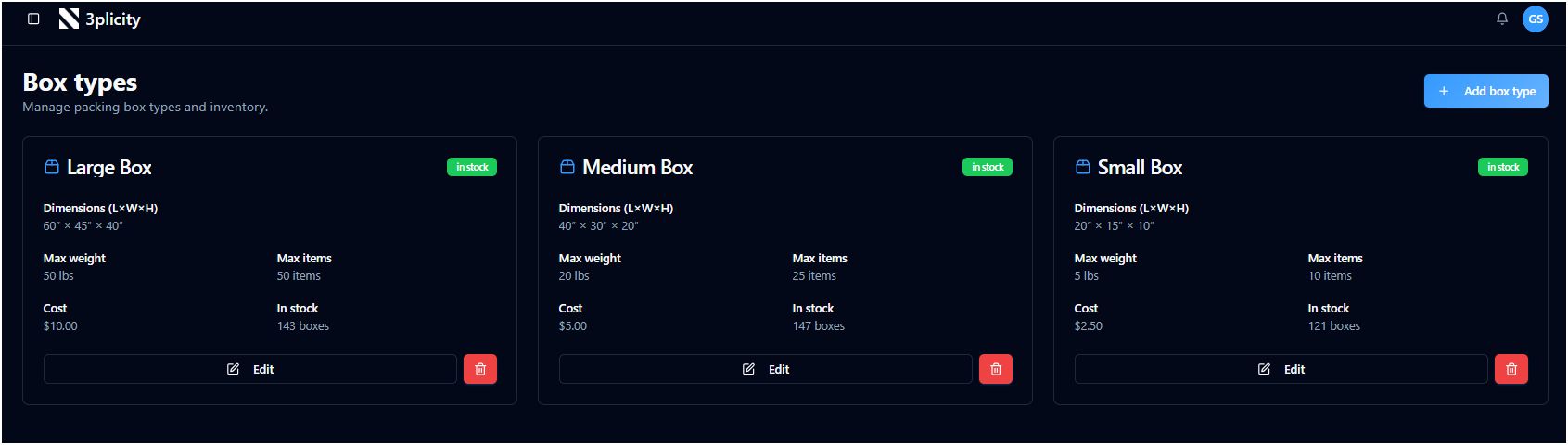
Edit
Use the Edit button to update:
Box dimensions
Weight limits
Barcode information
Packaging costs
Available stock quantities
Changes are applied immediately and become available during order fulfillment.
Delete
Use the Delete button to remove unused or outdated box configurations from the system.
Removing a box type prevents it from being selected during future fulfillment operations.
Was this article helpful?
That’s Great!
Thank you for your feedback
Sorry! We couldn't be helpful
Thank you for your feedback
Feedback sent
We appreciate your effort and will try to fix the article