Managing Products in 3PLICITY (Merchant Guide)
This guide explains how to add, import, view, edit, and delete products in 3PLICITY as a Merchant. Managing your product catalog allows you to keep track of inventory and prepare your items for fulfillment and integrations.
Accessing the Products Section
Log in to 3PLICITY using your Merchant credentials.
From the left-hand navigation panel, click Inventory.
Select Products.
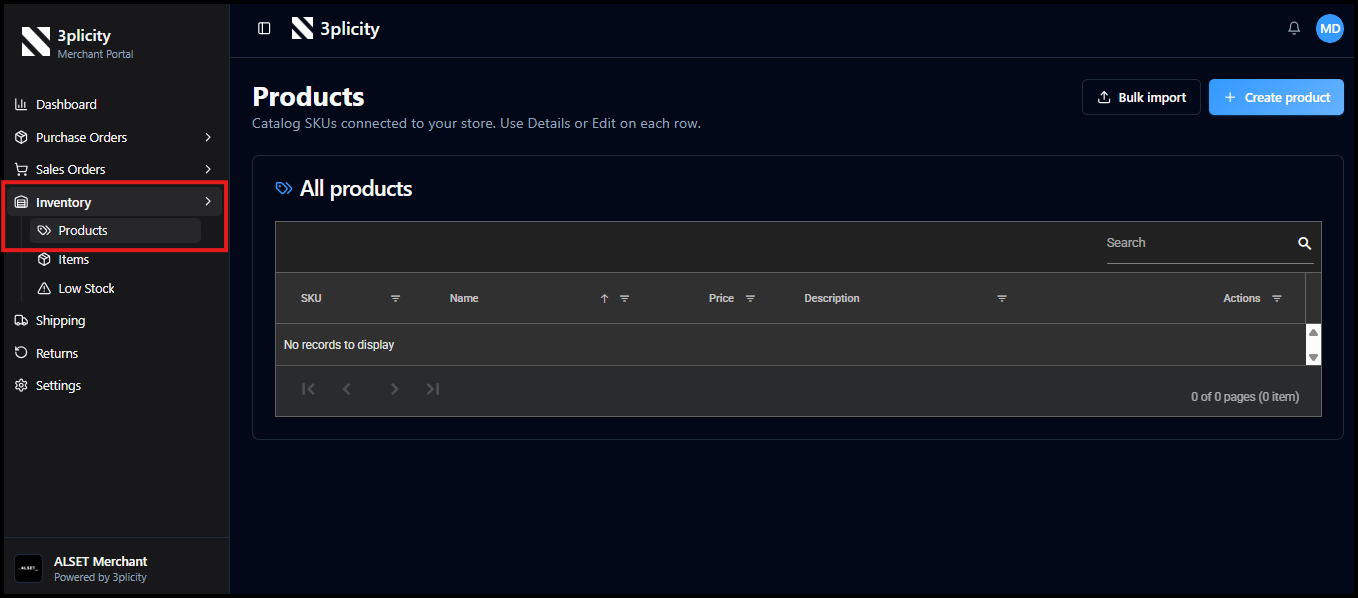
The Products section displays a table with all your registered products. If no products have been added yet, the table will be empty.
Understanding the Products Table
Each product is listed with key details, including:
SKU
Product Name
Price
Description
Actions (such as viewing details or editing)
You can browse through your products, navigate between pages, and use available controls to organize or locate specific items.
Creating a Product Manually
Click Create Product on top right.
Enter the required product information:
Product Name
SKU (recommended)
Barcode (optional)
Description
Default Unit Price
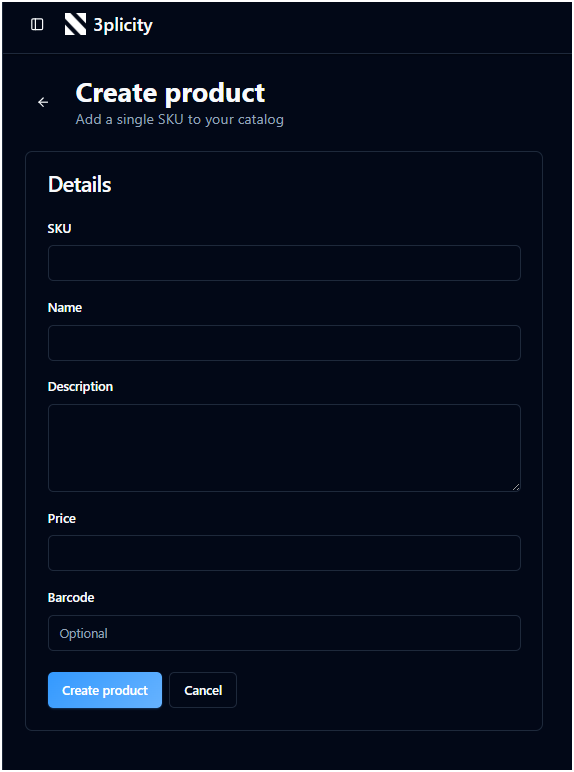
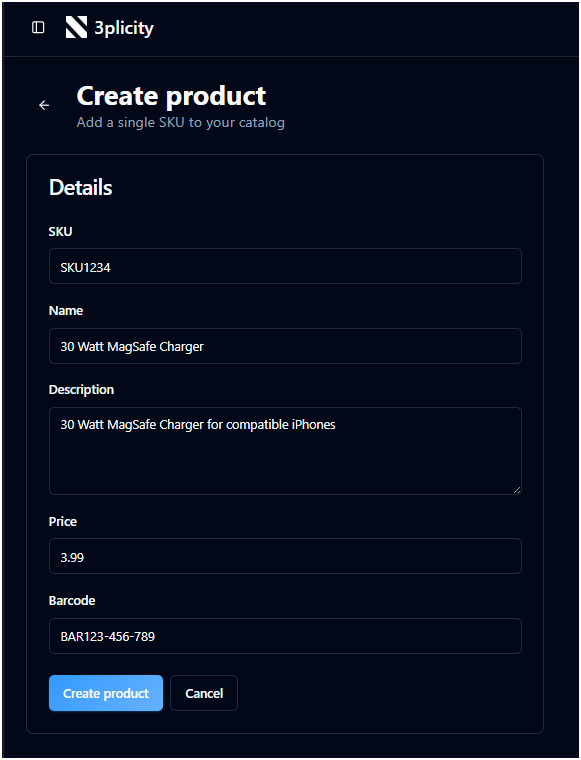
Click Save to create the product.
The product will be added to your catalog and displayed in the Products table.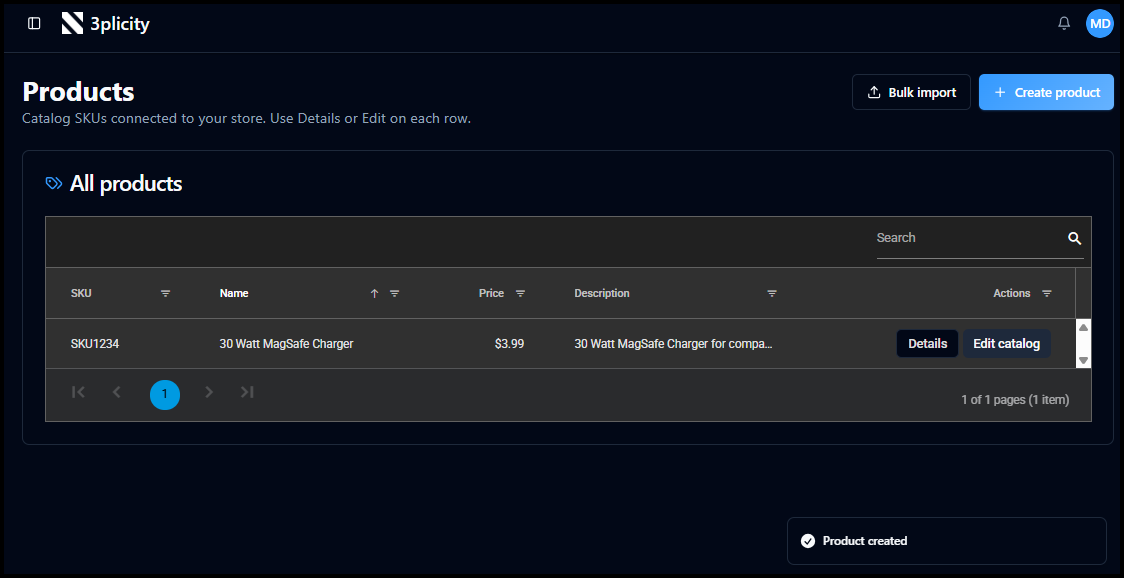
Adding Products Using Bulk Upload
If you need to add multiple products at once, you can use the Bulk Upload option.
Click Bulk Upload.
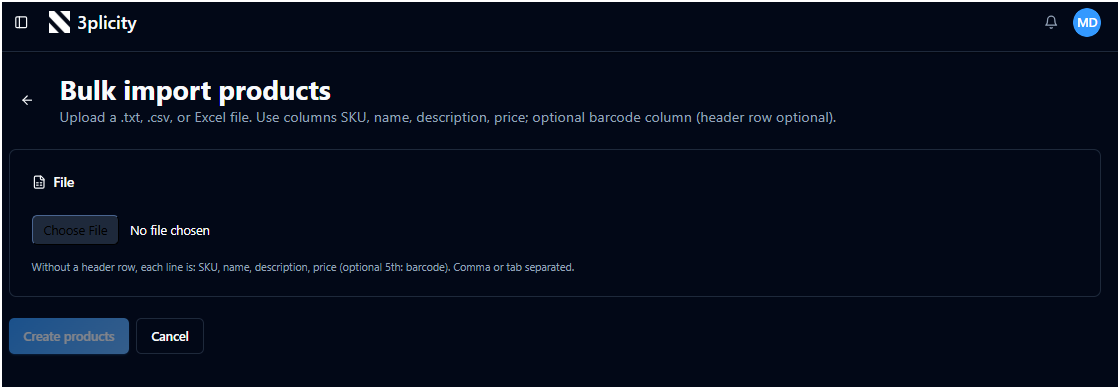
Download or prepare your file using the required format (CSV, TXT, or Excel).
Each row should include: SKU, Product Name, Description, and Price.
If using a text file, separate each by a comma.
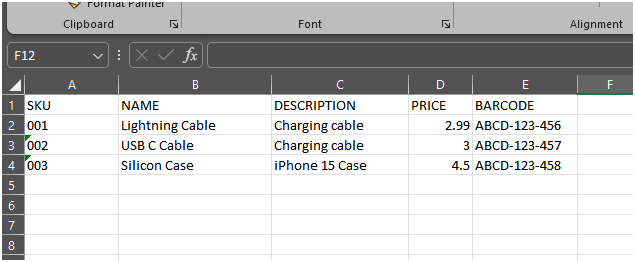
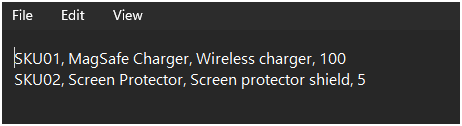
Click Choose File and select your file.
Review the preview of the uploaded data.
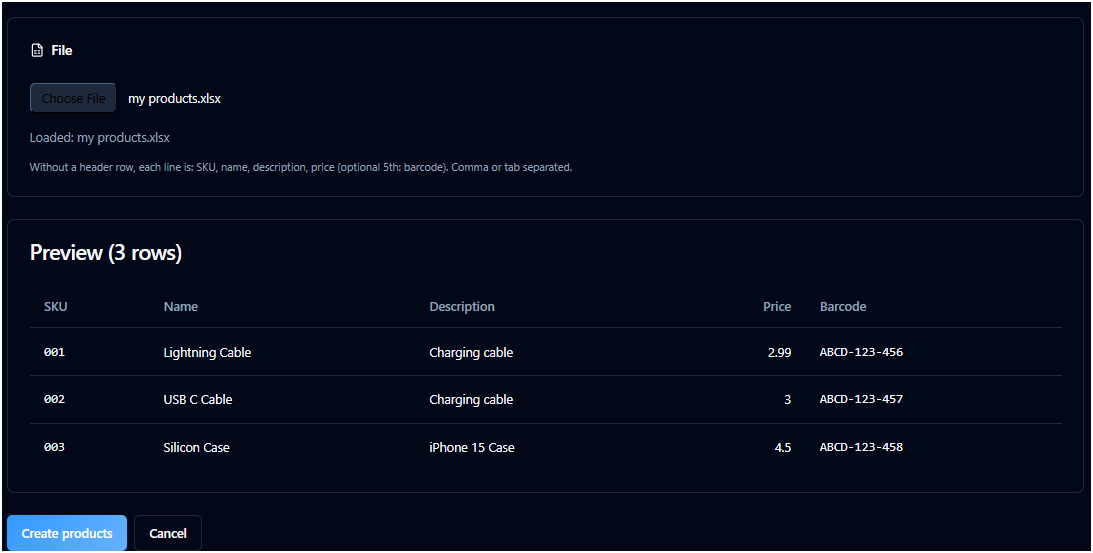
Click Create Products to confirm.
The uploaded products will be added to your catalog and displayed in the Products table.
Viewing Product Details
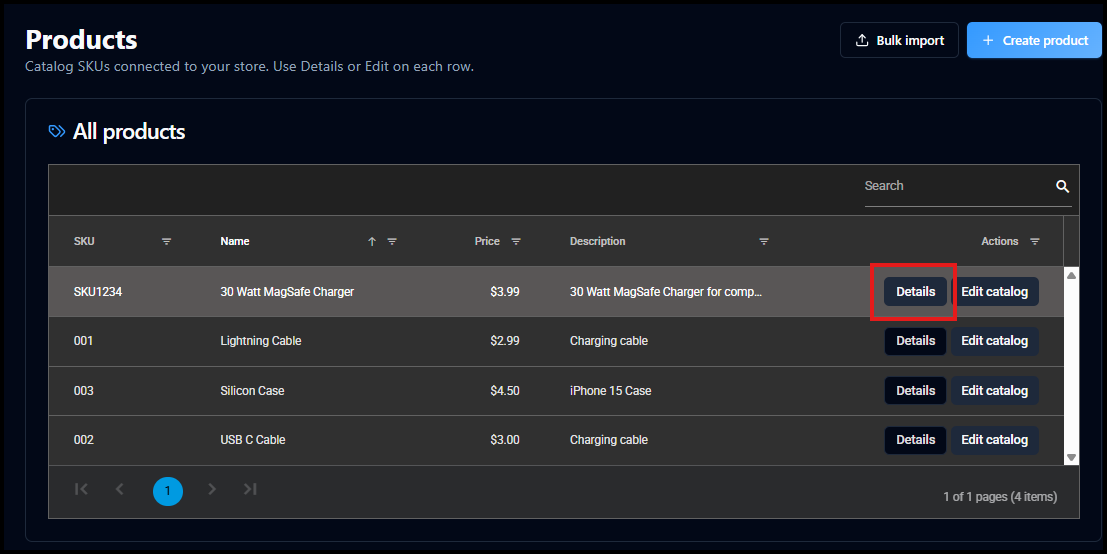
In the Products table, locate the desired product.
Click Details.
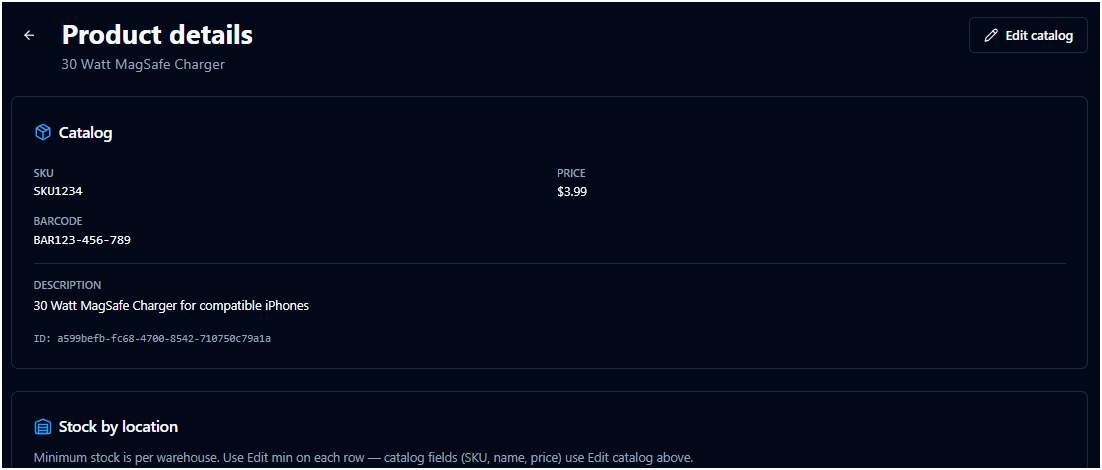
You will see additional information about the product, including catalog details and inventory-related sections.
Editing a Product
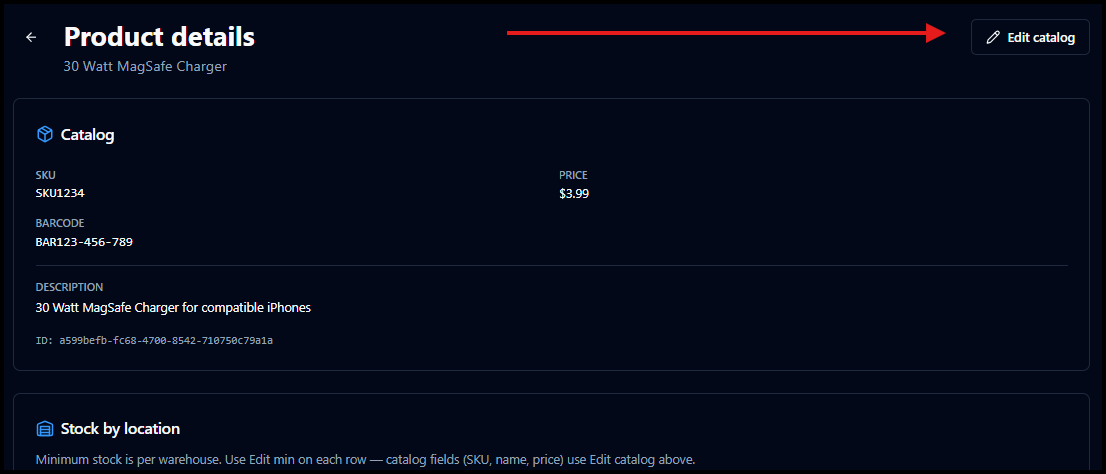
Open a product by clicking Details.
Click Edit Catalog.
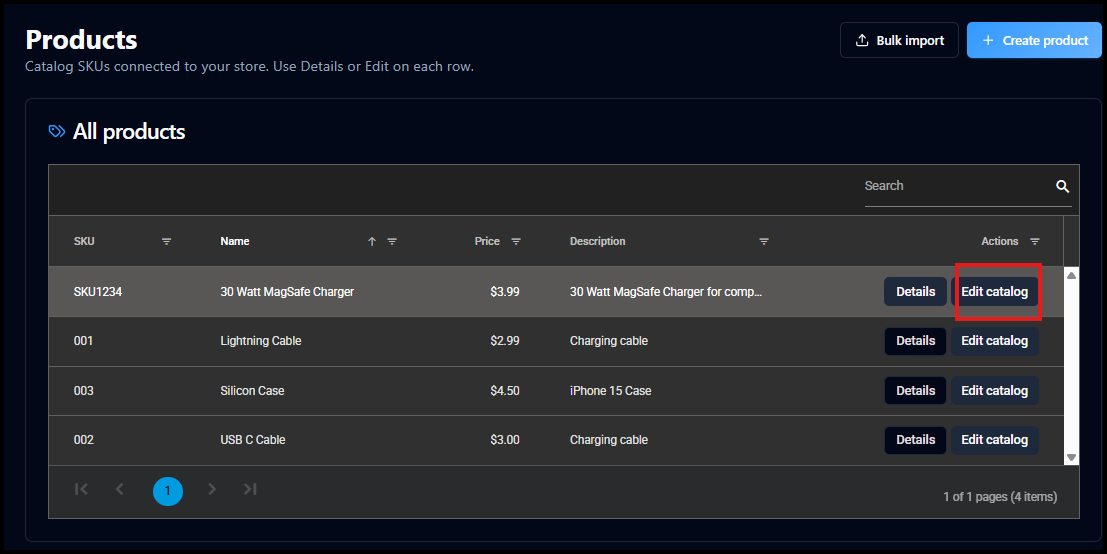
Or click Edit Catalog from the Products table.
Update any of the following fields:
SKU
Product Name
Description
Price
Barcode
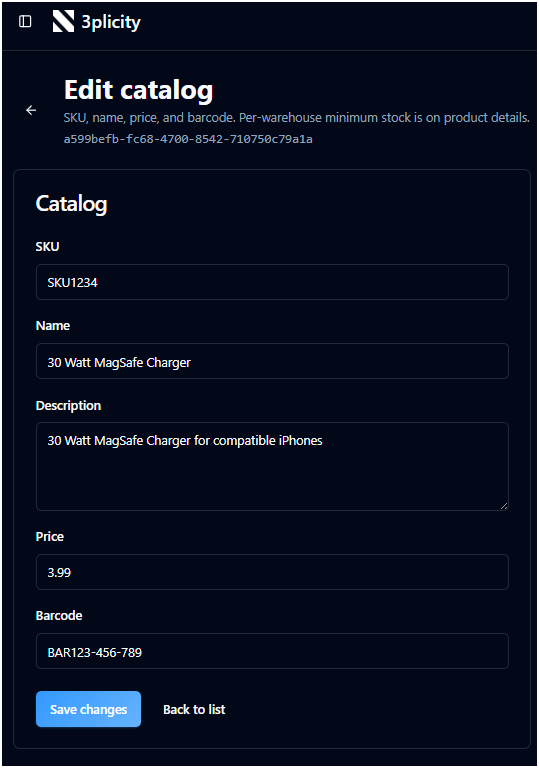
Click Save to apply changes.
The updated information will be reflected in the Products table.
Deleting a Product
Open the product from the Details view.
Click Edit Catalog.
Click Delete.
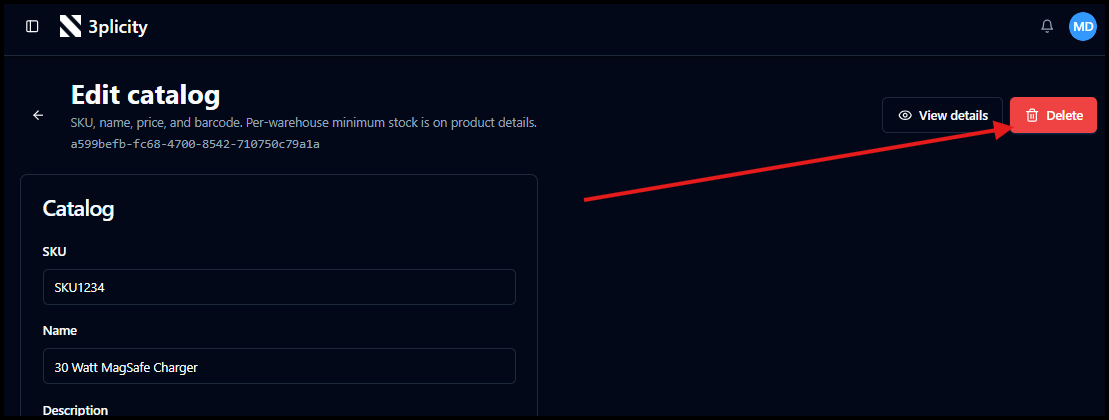
Confirm the action when prompted.
The product will be removed from your catalog and will no longer appear in the Products table.
Product and Inventory Association
When a product is created, it becomes available in your inventory when a Purchase Order is completed for tracking purposes.
Inventory can be managed and assigned based on your operational setup.
Support for assigning products to multiple warehouses may be available depending on your configuration.
Important Notes
Each product should have a unique SKU within your account.
The Product Name is required to create a product.
The Default Unit Price must be zero or greater.
All products are associated with your Merchant account and are only visible within your workspace and your associated 3PL Company.
Summary
By managing products in 3PLICITY, you can:
Build and maintain your product catalog
Track and organize inventory
Import products in bulk for efficiency
Update product information as needed
This ensures your inventory is structured, accurate, and ready for operational use within the platform.
Was this article helpful?
That’s Great!
Thank you for your feedback
Sorry! We couldn't be helpful
Thank you for your feedback
Feedback sent
We appreciate your effort and will try to fix the article