Completing Merchant Onboarding in 3PLICITY
This guide explains how to complete the Merchant onboarding process in 3PLICITY after receiving an invitation from a Company (3PL). It covers the full journey from accepting the invitation to configuring your account and accessing the dashboard.
Accepting the Invitation and Creating Your Account
Open the invitation email sent by the Company.
Click Accept Invitation.
You will be redirected to the Merchant Sign Up page, where your email is already filled in and cannot be edited.
Enter the required information:
Store Name
First Name and Last Name
Password and Confirm Password
Click Create Merchant Account.
After submitting the form, you will be redirected to the login page with a message asking you to verify your email.
Verifying Your Email
Open the verification email sent to your inbox.
Click Activate My Account.
You will be redirected to the login page, and your account will be confirmed.
Logging In and Starting Onboarding
Enter your credentials on the login page.
Click Sign In.
Once logged in, the Merchant onboarding process begins automatically.
Step 1: Company Information
In this step, you will provide your business details.
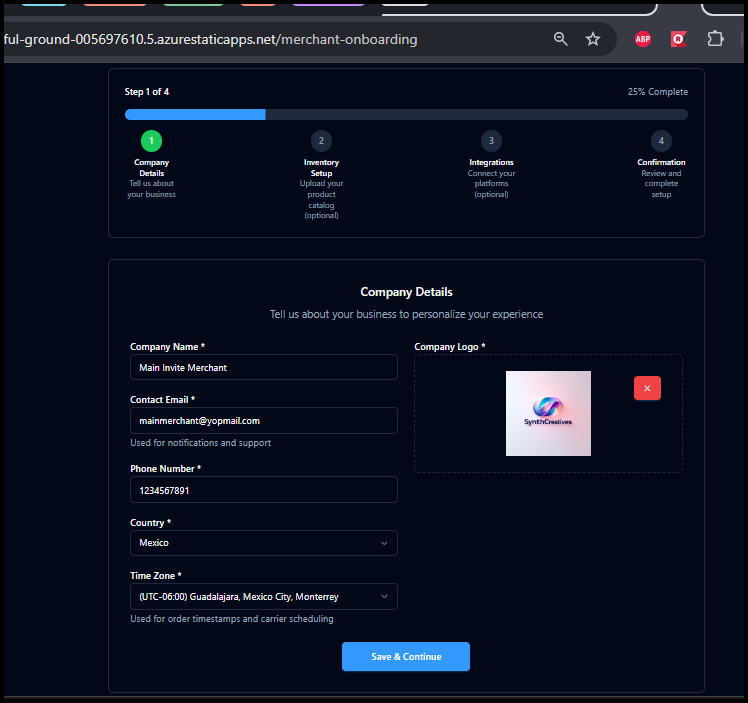
Enter the following information:
Company Name
Contact Email
Phone Number
Select your Country from the dropdown list.
Select your Time Zone.
Upload your Company Logo using the upload button.
Once all required fields are completed, click Next to continue.
Step 2: Inventory Configuration
In this step, you can add products to your inventory.
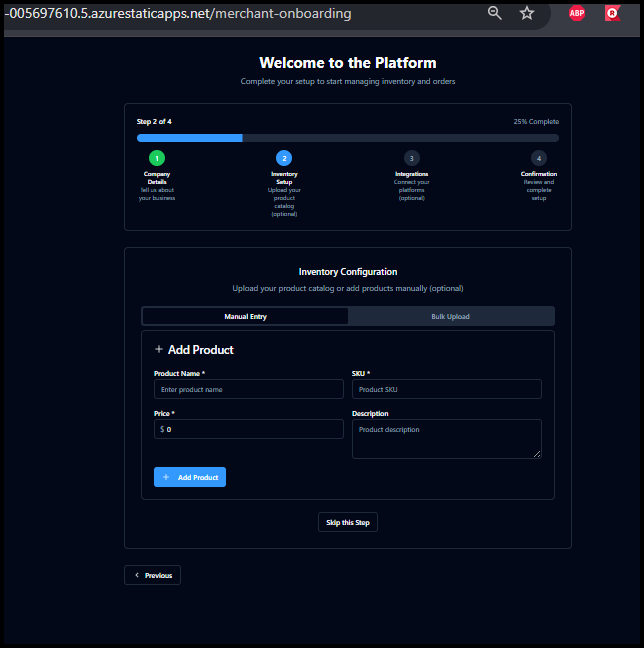 |  |
Manual Entry
Enter product details:
Product Name
SKU
Price
Description
Click Add Product.
The product will appear in the list below. You can repeat this process to add more items.
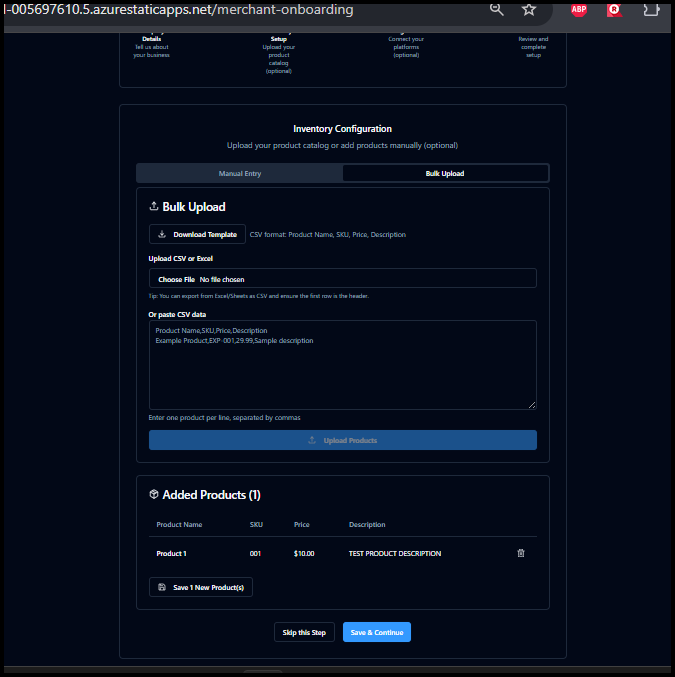
Bulk Upload
Click Bulk Upload.
Download the provided template file.
Fill in your product data using the template format.
Upload the file.
Click Upload Products.
The uploaded products will appear in the inventory list.
After adding your products, click Save and Continue.
Step 3: Integration Setup
In this step, you can connect your store to external platforms.
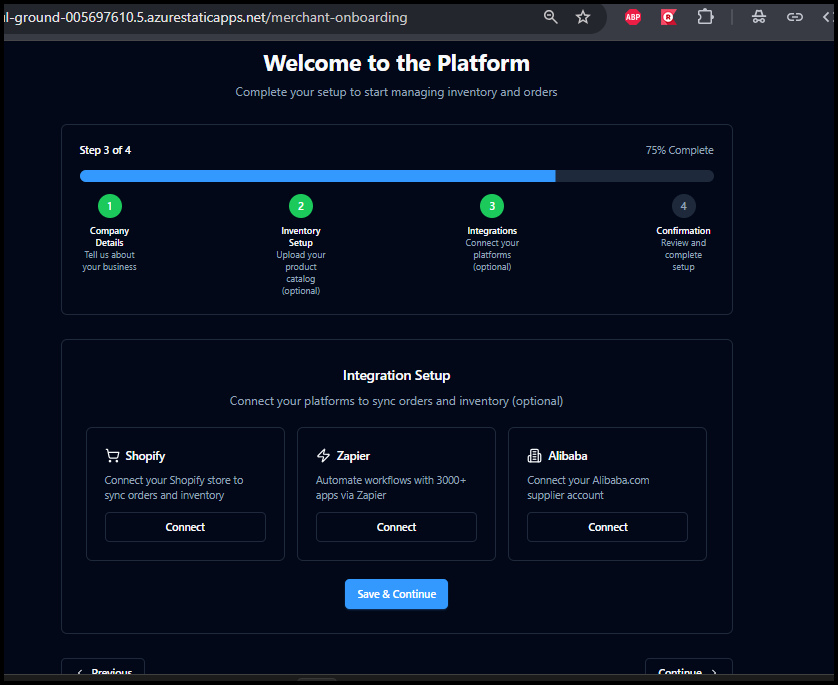
Available integrations may include platforms such as Shopify, Zapier, or Alibaba.
To connect an integration:
Click Connect on the desired platform.
Enter the required API and URL details.
Confirm the connection.
If you prefer, you can skip this step and continue later.
Click Save and Continue to proceed.
Step 4: Review and Complete
In the final step, you will review your setup:
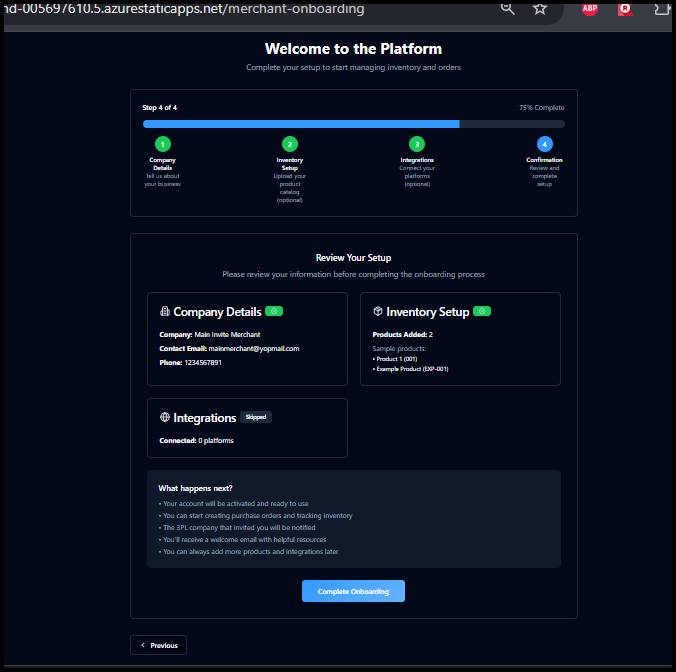
Company information
Inventory configuration
Integration settings
Verify that all information is correct.
Click Complete Onboarding.
Accessing the Dashboard
After completing onboarding, you will be redirected to the Merchant Dashboard, where you can begin managing your operations within 3PLICITY.
Summary
By completing onboarding, you:
Activate your Merchant account
Configure your business information
Set up your inventory
Optionally connect integrations
This process ensures your account is fully prepared to operate within the 3PLICITY platform.
Was this article helpful?
That’s Great!
Thank you for your feedback
Sorry! We couldn't be helpful
Thank you for your feedback
Feedback sent
We appreciate your effort and will try to fix the article