3PL Company Management and Access Control
Overview
The 3PLICITY Backoffice allows authorized administrators to manage registered 3PL Companies and control their access to the platform.
From the Admin Dashboard, administrators can:
View registered 3PL Companies
Open individual company details
Review merchants linked to a company
Suspend or reactivate a 3PL Company
Access the company's Stripe customer record when available
Search for a specific company
Suspending a company prevents its users from accessing the 3PLICITY platform until the company is reactivated.
Accessing the Admin Dashboard
Open the 3PLICITY Backoffice.
Sign in using your administrator credentials.
From the Backoffice, open the Admin Dashboard.
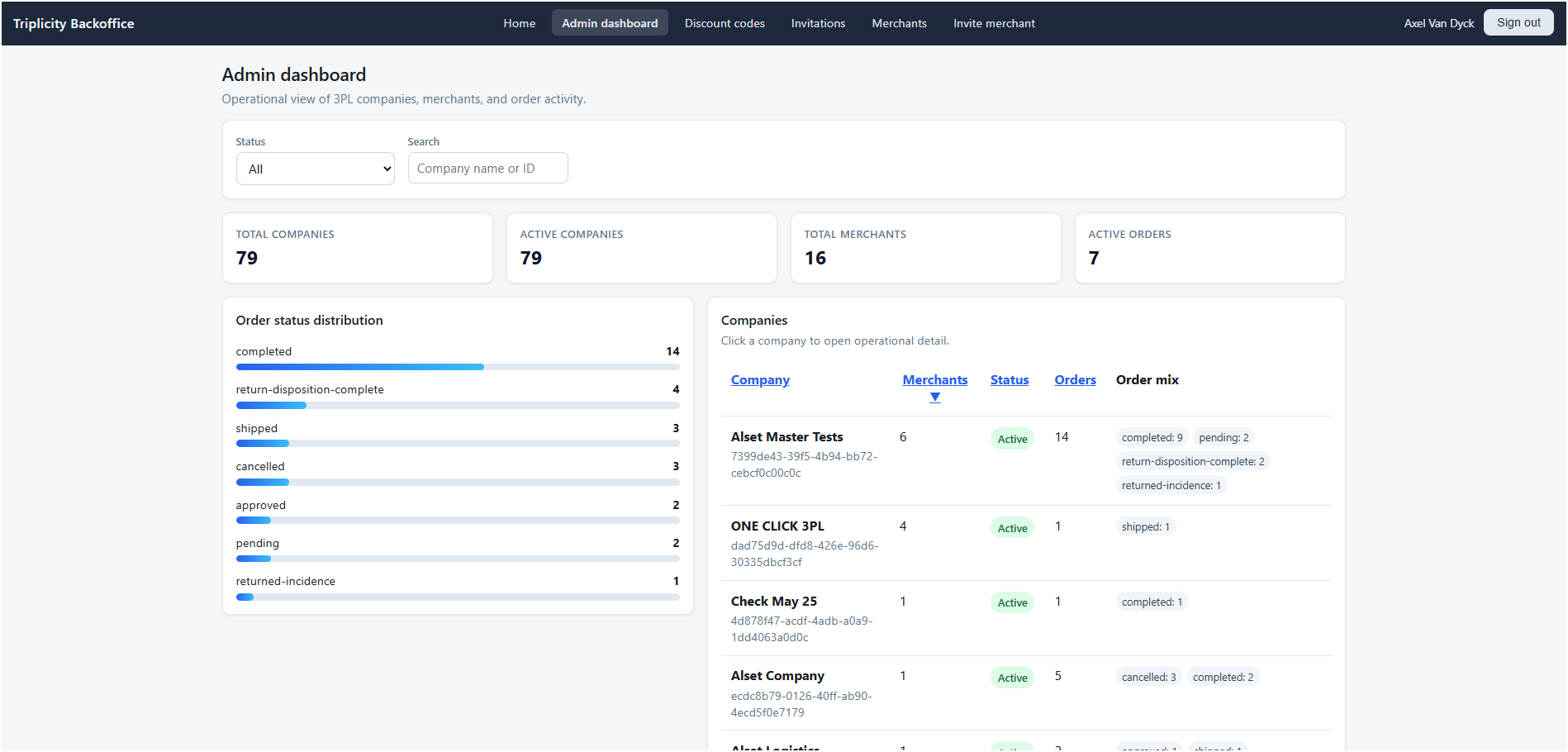
The Admin Dashboard provides access to the registered 3PL Companies and their management options.
Managing 3PL Companies
Viewing Registered Companies
The Admin Dashboard displays a list of registered 3PL Companies.
Each company can be opened to access its management and account information.
To view a company's details:
Locate the desired company in the list.
Click the company entry.
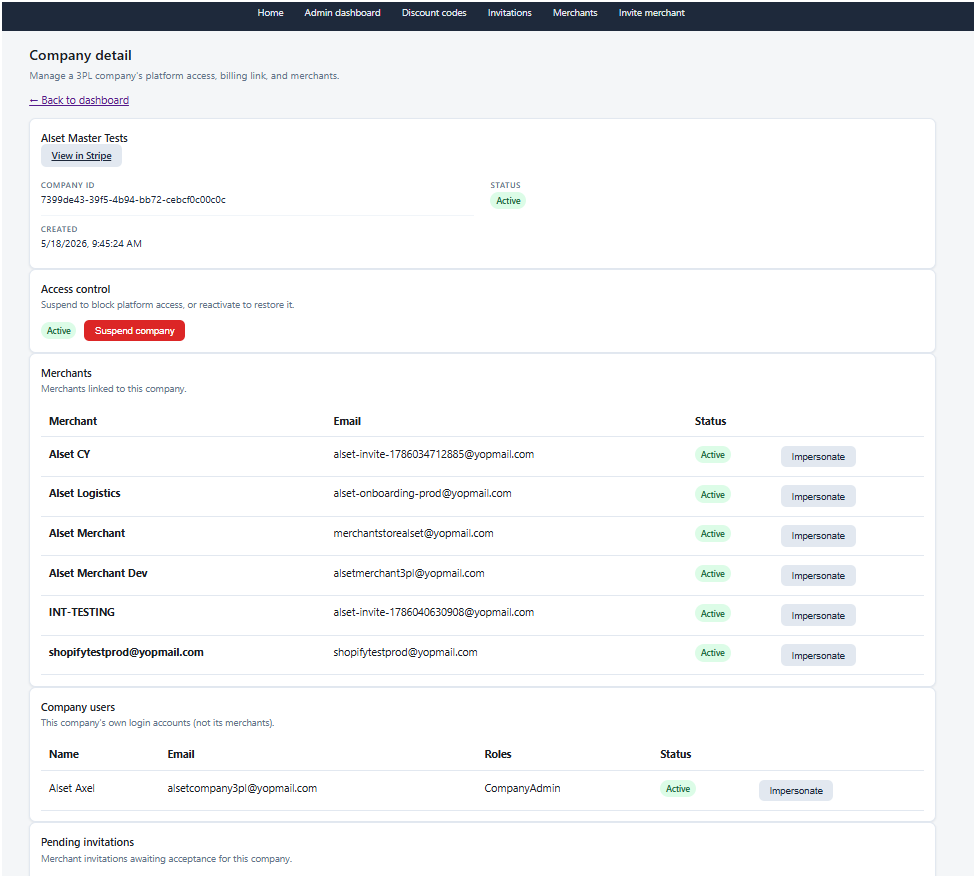
The company detail page displays information associated with the selected 3PL Company, including its linked merchants and available account management actions.
Viewing Linked Merchants
The company detail page includes a list of merchants associated with the selected 3PL Company.
The merchant list allows administrators to identify which merchants are currently linked to that company.
Only merchants associated with the selected 3PL Company are displayed.
Suspending a 3PL Company
Administrators can temporarily restrict a 3PL Company's access to 3PLICITY by suspending the company.
To suspend a company:
Open the company's detail page.
Click Suspend Company.
Review the confirmation message.
Confirm the action.
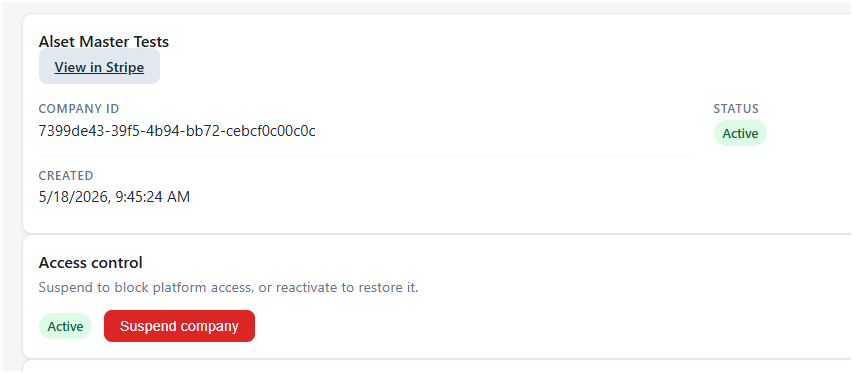
Once the suspension is completed, the company status changes and the action button becomes Reactivate Company.
Access After Suspension
When a 3PL Company is suspended, its users can no longer sign in to the platform.
Users attempting to access the platform with an account associated with the suspended company receive a message indicating that the company is suspended.
The company's operational access remains restricted until an administrator reactivates it.
Reactivating a 3PL Company
Administrators can restore access to a suspended company at any time.
To reactivate a company:
Open the company's detail page.
Click Reactivate Company.
Review the confirmation message.
Confirm the action.
After reactivation, users associated with the company can sign in and resume normal platform operations.
Accessing Stripe Customer Information
When a 3PL Company has an associated Stripe customer record, the company detail page provides access to that record.
To open the Stripe customer record:
Open the company's detail page.
Locate the Stripe link or button.
Click the link.
The link opens the corresponding Stripe customer record for the company.
The Stripe link is only available when the company has an associated Stripe customer record.
Searching for a 3PL Company
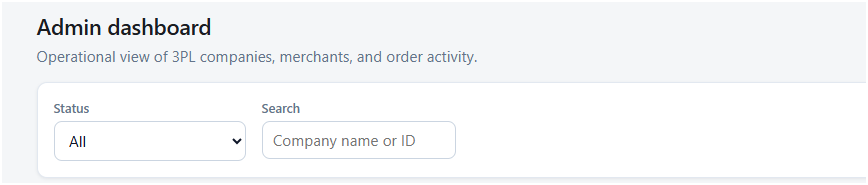
The Admin Dashboard includes a search field that can be used to locate a specific company.
To search for a company:
Navigate to the Admin Dashboard.
Enter the company ID or relevant search information in the search field.
Review the search results.
If no matching company is found, the system displays an appropriate empty state indicating that the requested company could not be found.
Company Access Management Workflow
The typical company management workflow is:
Open the Admin Dashboard.
Locate and open the desired 3PL Company.
Review the company's information and linked merchants.
If necessary, select Suspend Company and confirm the action.
To restore access, select Reactivate Company and confirm.
When applicable, use the Stripe link to access the company's billing record.
This workflow allows administrators to manage 3PL Company access while maintaining visibility of their associated merchants and account information.
Was this article helpful?
That’s Great!
Thank you for your feedback
Sorry! We couldn't be helpful
Thank you for your feedback
Feedback sent
We appreciate your effort and will try to fix the article