Manage “Pending for Reviewing” Orders
Overview
The Pending section in 3PLICITY allows 3PL companies to review newly created sales orders submitted by merchants before fulfillment begins.
From this section, users can review customer information, shipping details, ordered products, totals, and shipping label information before approving or cancelling the order.
Pending orders act as the initial review stage before orders move into the fulfillment workflow.
Accessing Pending Orders
- Open the 3PLICITY platform.
- Sign in using your 3PL company credentials.
- From the left navigation panel, click Sales Orders.
- Select the Pending tab.
The Pending Orders screen displays all sales orders currently waiting for review and approval.
Understanding the Pending Orders Table
The Pending Orders table provides a centralized view of all newly submitted merchant orders.
Each order entry includes:
- Order number
- Merchant Origin Name
- Current status
- Creation date
- Selection checkbox for bulk actions
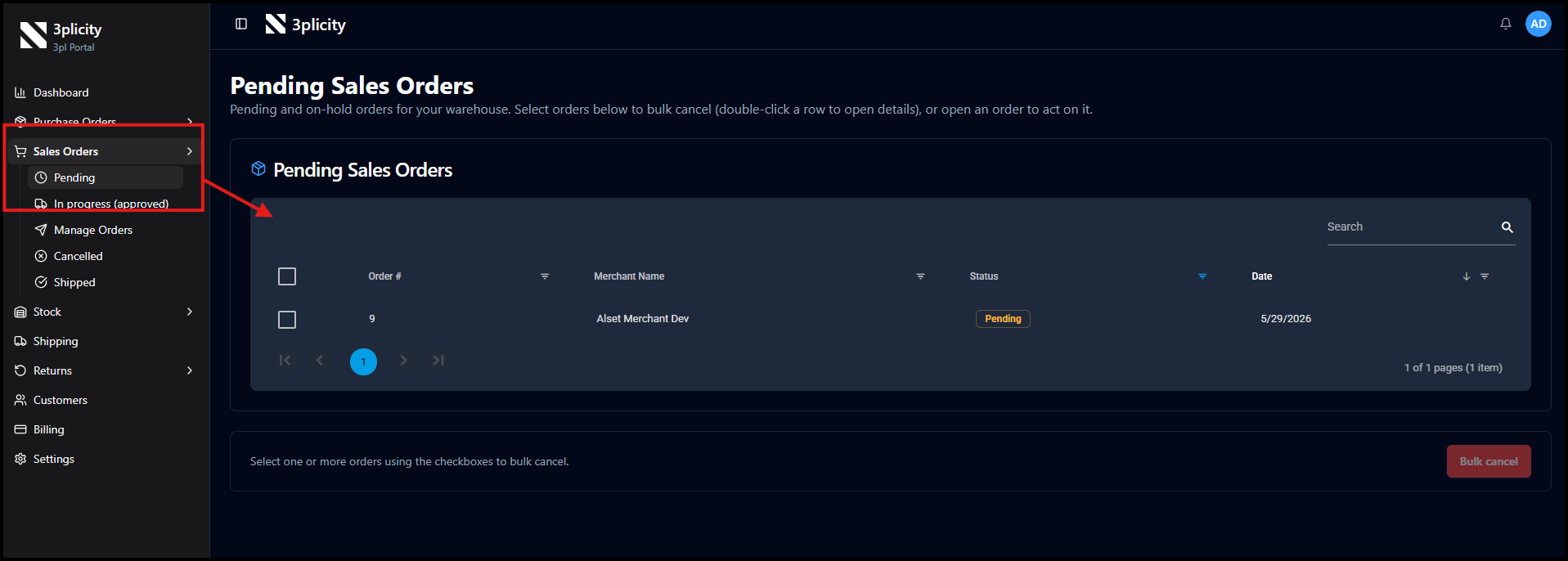
The table also supports:
- Pagination for navigating large order volumes
- Column sorting
- Filtering options for quick order lookup
Opening an Order for Review
To review a pending order:
- Double-click any order from the Pending Orders table.
The Order Details screen opens and displays the complete order information.
Reviewing Order Information
The Order Details screen provides all operational information required for warehouse teams and 3PL operators to review, approve, process, or cancel incoming sales orders.
Orders may arrive in two different ways:
- Orders created manually without a shipping label
- Orders created using an uploaded shipping label
Depending on how the order was created, the approval workflow may vary slightly.
Scenario #1; No label attached: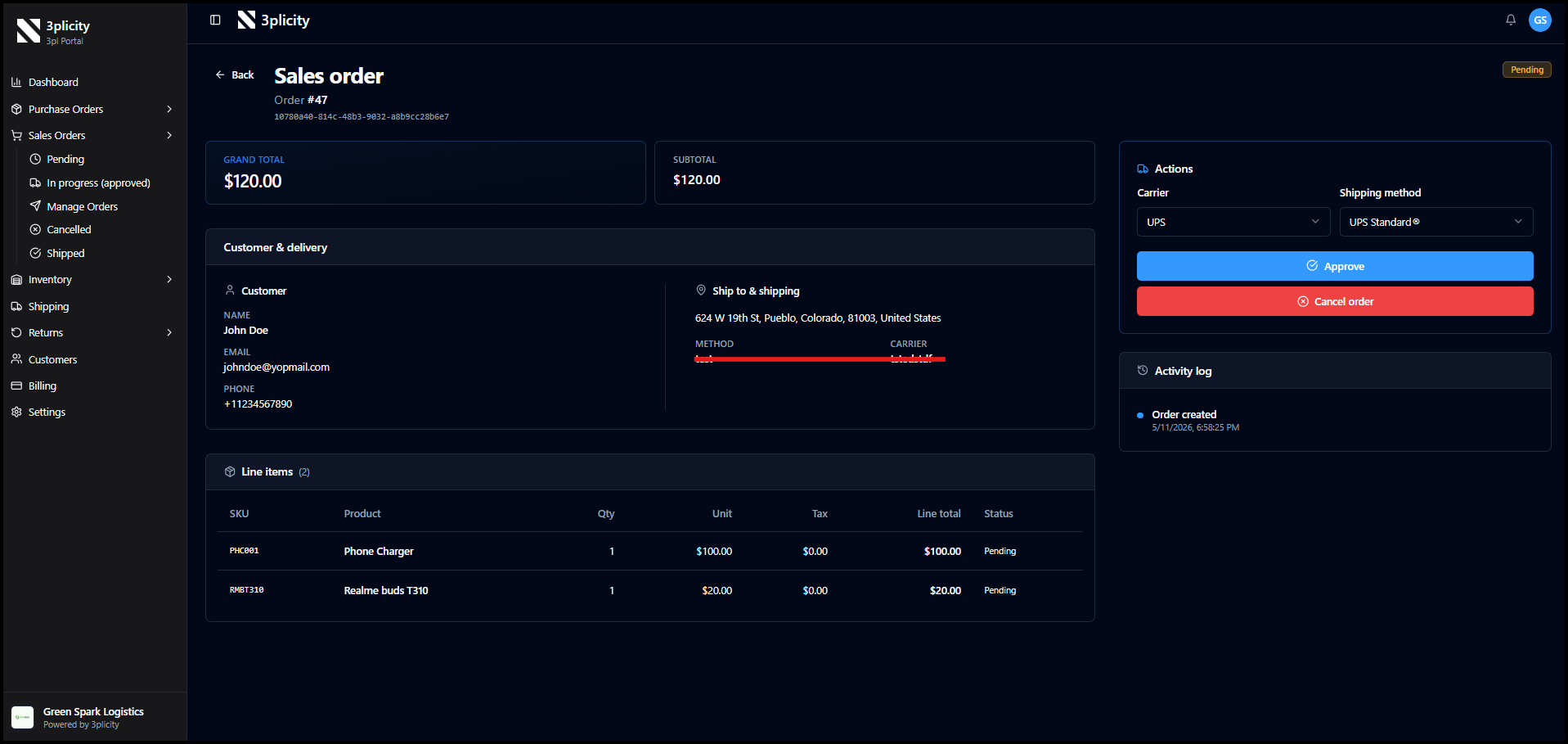
Scenario #2; label attached: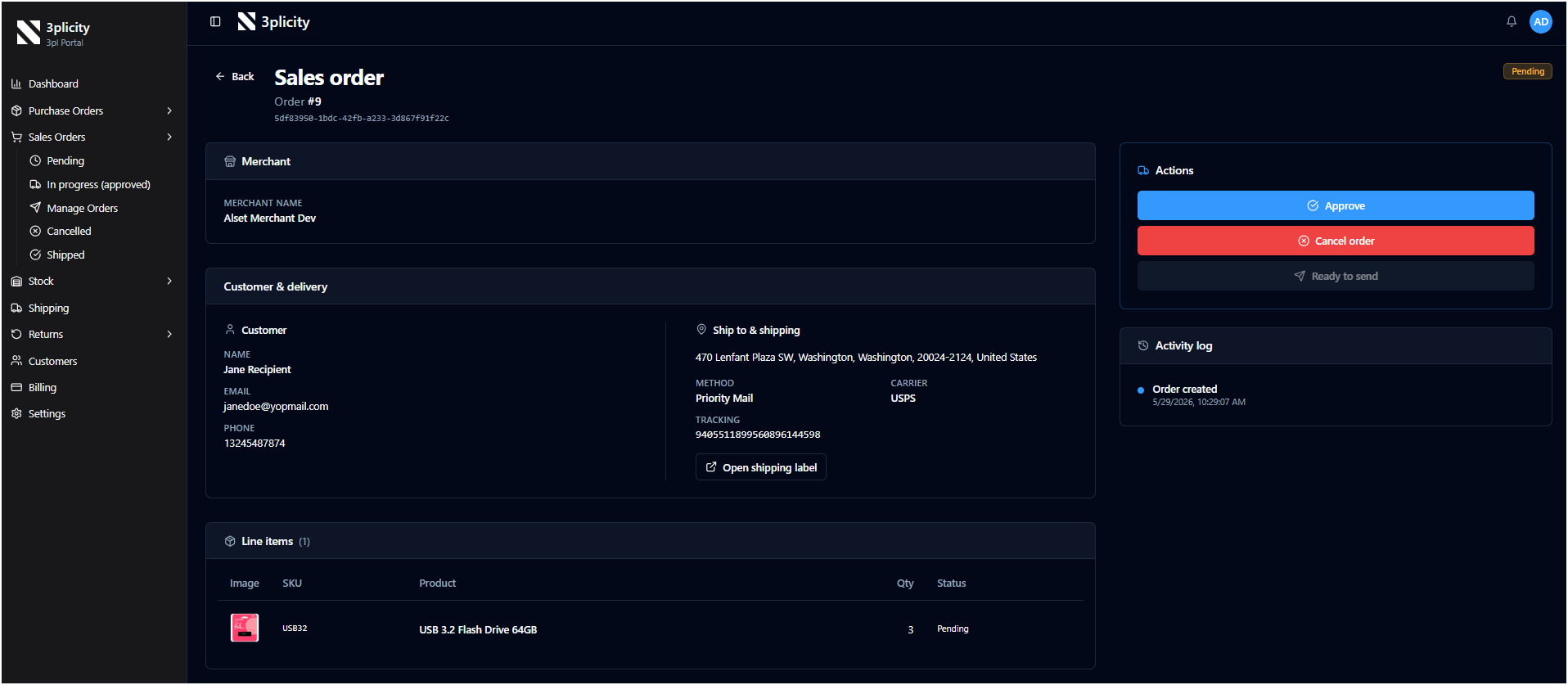
Order Summary
At the top of the screen, the Order Summary section displays key financial and operational information for the order, including:
- Order number
- Internal order ID
- Subtotal
- Grand total
These values represent the complete order generated from the selected products.
The top section also displays the Merchant name, allowing the 3PL company to quickly identify which merchant submitted the order.
This is especially useful when managing orders from multiple merchants within the same warehouse operation.
Customer & Delivery Information
The Customer & Delivery section contains all recipient and shipment details required for fulfillment.
This section may include:
- Customer name
- Email address
- Phone number
- Shipping address
- Shipping method
- Carrier information
Warehouse operators typically review this information before approving the order to ensure shipping details are correct.
Shipping Labels
If the merchant uploaded a shipping label during order creation, the Order Details screen displays the shipping label information automatically.
This may include:
- Carrier name
- Shipping method
- Tracking number
- Shipping label access or download option
Because the carrier information is already provided through the uploaded label, the carrier selection dropdown is not displayed for these orders.
The 3PL operator only needs to:
- Review the shipping information
- Confirm the address and shipment details
- Approve or cancel the order
This workflow helps accelerate processing by reducing manual shipping setup.
Orders Without a Shipping Label
If the merchant created the order manually without attaching a shipping label, the 3PL company is responsible for selecting the shipping carrier before approving the order.
In this workflow, the Actions section displays carrier selection controls.
The operator must:
- Review the shipping address
- Select the carrier from the dropdown menu
- Optionally select the shipping method if applicable
- Approve the order
Once the carrier is selected, the order can move into the fulfillment process.
Actions Section
The Actions section contains the operational controls used to process the order.
Depending on the order type, users may be able to:
- Select a carrier
- Select a shipping method
- Approve the order
- Cancel the order
For orders with merchant-provided shipping labels, carrier information is already populated automatically and manual carrier selection is not required.
For manually created orders without labels, the carrier must be selected before approval.
These actions determine how the order moves into warehouse fulfillment and shipping operations.
Line Items
The Line Items section displays all products included in the order.
Each item includes:
- SKU
- Product name
- Quantity
- Unit price
- Tax
- Line total
- Current status
Orders in the Pending stage display line items with a Pending status.
Warehouse teams commonly use this section to:
- Review picking requirements
- Verify quantities
- Prepare packing operations
Activity Log
The Activity Log records the operational history of the order.
Examples of tracked activities include:
- Order created
- Carrier assigned
- Order approved
- Order cancelled
- Shipping updates
Each activity includes a timestamp to support operational tracking and traceability.
Operational Workflow
Orders Without a Shipping Label
Orders created manually without a shipping label typically follow this workflow:
- Open the order from the Pending table.
- Review customer and shipping information.
- Review products and quantities.
- Select the shipping carrier from the dropdown.
- Confirm shipping requirements.
- Approve the order to move it into fulfillment.
Once approved, the order moves from Pending to In Progress.
Orders With a Shipping Label
Orders created using an uploaded shipping label follow a simplified workflow:
- Open the order from the Pending table.
- Review customer and shipping information extracted from the label.
- Review products and quantities.
- Verify the provided carrier and shipment details.
- Approve or cancel the order.
Because shipping information is already attached to the order, manual carrier selection is not required.
Once approved, the order moves from Pending to In Progress and becomes part of the warehouse fulfillment workflow.
Was this article helpful?
That’s Great!
Thank you for your feedback
Sorry! We couldn't be helpful
Thank you for your feedback
Feedback sent
We appreciate your effort and will try to fix the article