Manage Billing
Overview
The Billing section in 3PLICITY allows Companies to manage their payment method, review monthly usage charges, monitor outstanding balances, and access invoice history.
Instead of a subscription-based model, 3PLICITY uses a usage-based billing system. Charges are calculated based on completed Sales Orders and billed automatically at the beginning of each month.
The Billing module is available from the left-side navigation panel after onboarding is completed.
Billing Model
Usage-Based Charges
3PLICITY charges Companies based on the number of fulfilled Sales Orders processed during the billing period.
Only Sales Orders that reach the following statuses are included in billing calculations:
Ready to Send
Shipped
Delivered
Any subsequent fulfillment status
Orders that remain in earlier stages are not included in monthly billing calculations.
Monthly Charge Calculation
Throughout the month, the platform automatically tracks eligible Sales Orders and accumulates billing charges.
The Billing page displays:
Total eligible Sales Orders
Current accumulated balance
Applied discounts (if applicable)
Payment method information
Invoice history
At the beginning of each month, 3PLICITY automatically generates and processes the invoice for the previous month's activity.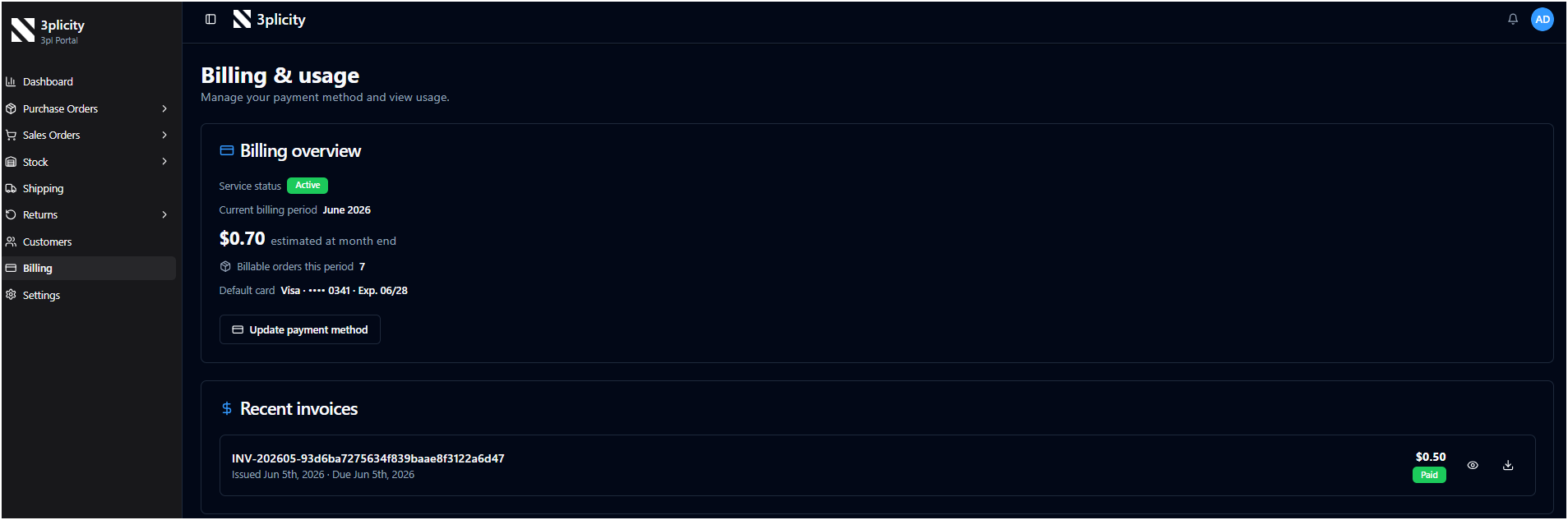
Discount Coupons
Promotional discount codes may be available during onboarding.
For example:
50% discount for 12 months
When a valid coupon is applied:
The discount is automatically applied to eligible monthly charges
Billing calculations reflect the discounted amount
The discount remains active for the configured promotional period
Applying a Coupon During Onboarding
To Apply a Coupon
Enter the coupon code during onboarding.
Complete the required account information.
Continue through the setup process.
If the coupon is valid, the discount is applied automatically and will be reflected in future invoices.
Payment Method Management
Adding a Payment Method
A valid payment method is required before billing can be activated.
During onboarding:
Enter your payment card information.
Complete the account setup process.
The payment method is securely stored and used for future monthly billing transactions.
Updating a Payment Method
Companies can update their billing card at any time.
To Update a Payment Method
Navigate to Billing.
Locate the Payment Method section.
Click Update Payment Method.
Enter the new card information.
Save the changes.
The updated card becomes the default payment method for future invoices.
Viewing Billing Information
Billing Summary
The Billing page provides an overview of current usage and charges.
Available information may include:
Number of billable Sales Orders
Current accumulated balance
Active discount information
Payment method details
Invoice history
This information updates automatically as new orders become eligible for billing.
Monthly Invoice Processing
Invoice Generation
At the beginning of each month, 3PLICITY automatically:
Calculates all eligible Sales Orders from the previous month.
Applies any active discounts.
Generates an invoice.
Attempts payment using the saved payment method.
If payment is successful:
The invoice is marked as Paid.
The billing cycle is completed automatically.
Invoice Management
Reviewing Invoices
The Billing section includes an Invoice History area where Companies can review previously generated invoices.
Invoices may display statuses such as:
Paid
Open
Past Due
Viewing Invoice Details
To review an invoice:
Navigate to Billing.
Locate the invoice within the invoice list.
Click the invoice entry to open its details.
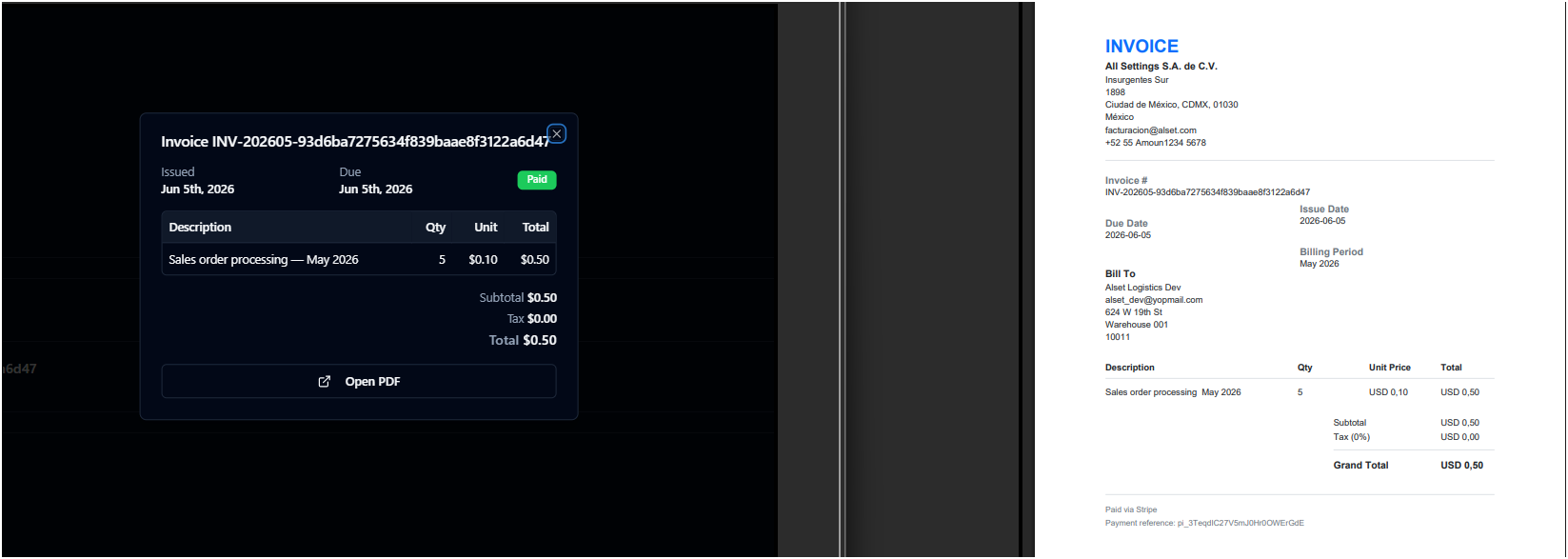
Invoice details include:
Billing period
Number of billed Sales Orders
Applied discounts
Total amount charged
Payment status
Downloading an Invoice
To download an invoice:
Navigate to Billing.
Locate the desired invoice.
Click Download.
The invoice is downloaded as a PDF document for accounting and record-keeping purposes.
Managing Open Invoices
If a payment could not be processed successfully, the invoice may remain unpaid.
Invoices awaiting payment may display statuses such as:
Open
Past Due
To Pay an Outstanding Invoice
Navigate to Billing.
Open the unpaid invoice.
Click Pay Online.
Complete the payment process.
Confirm the transaction.
After successful payment:
The invoice status updates to Paid.
Account restrictions are removed if applicable.
Failed Payments and Account Restrictions
Payment Failures
Payments may fail for reasons such as:
Insufficient funds
Expired cards
Declined transactions
Invalid payment methods
When a payment fails, the platform automatically attempts to recover the payment.
Failed Payment Attempts
The system may attempt payment multiple times during a recovery window.
If three payment attempts fail within a 24-hour period:
Company access becomes restricted.
Operational modules become unavailable.
Billing remains accessible.
Users can still sign out of the platform.
This allows Companies to resolve payment issues without losing access to billing management tools.
Restoring Full Access
To restore full access:
Navigate to Billing.
Update the payment method if necessary.
Pay any outstanding invoice.
Confirm the payment.
Once payment is successfully processed:
Outstanding invoices are updated.
Account restrictions are removed.
Full platform functionality is restored.
Access Rules
Accounts in Good Standing
When billing obligations are current:
All operational modules remain available.
Companies can manage inventory, orders, returns, shipping, and reporting.
Merchant operations continue normally.
Accounts with Outstanding Billing Issues
When invoices remain unpaid after repeated failed payment attempts:
Company Users
Access is limited to:
Billing
Logout
Merchant Users
Merchant accounts may receive service suspension notifications until the outstanding balance is resolved.
Discontinuing Platform Usage
Since 3PLICITY uses a usage-based billing model, there is no subscription cancellation process.
Companies that no longer wish to incur charges can simply stop creating and processing Sales Orders through the platform.
Because billing is based only on eligible Sales Orders that reach Ready to Send or later statuses:
- No new charges are generated when no qualifying orders are processed.
- Existing invoices remain payable if outstanding.
- The payment method remains on file unless removed according to platform policies.
Companies may continue accessing the platform without generating additional billing activity, provided no new billable orders are created.
Operational Billing Summary
3PLICITY uses a usage-based billing model that charges Companies according to fulfilled Sales Orders.
The process follows this sequence:
Sales Orders reach Ready to Send or later statuses.
Eligible orders are counted automatically.
Charges accumulate throughout the month.
Discounts are applied when available.
An invoice is generated at the beginning of the following month.
Payment is processed using the stored payment method.
Invoice history remains available within the Billing section for future reference and accounting purposes.
Was this article helpful?
That’s Great!
Thank you for your feedback
Sorry! We couldn't be helpful
Thank you for your feedback
Feedback sent
We appreciate your effort and will try to fix the article