Managing Purchase Order Incidences as a 3PL
Overview
During the Purchase Order receiving and approval process, a 3PL company may encounter discrepancies between the quantities expected on the Purchase Order and the quantities actually received.
3PLICITY allows 3PL operators to record these discrepancies directly at the product level by creating an incidence for the affected item.
Incidences serve as adjustment records that document quantity changes and the reason for the adjustment. They do not place the Purchase Order on hold and do not interrupt the approval workflow.
Once the review is completed, the Purchase Order can be approved normally while maintaining a complete audit trail of all adjustments made during receiving.
Accessing a Purchase Order
Log in to 3PLICITY using your 3PL credentials.
Navigate to Purchase Orders.
Open the Purchase Order that is ready for receiving and review.
The Purchase Order details page displays all products included in the shipment along with their expected quantities.
Understanding Product-Level Incidences
Incidences are recorded directly on individual product line items.
They are commonly used when:
Fewer units were received than expected.
Additional units were received.
Products were damaged during receiving.
Quantities differ from the packing slip.
Items are missing from the shipment.
Other receiving discrepancies need to be documented.
Each incidence is linked to a specific product and remains visible for future reference and auditing.
Creating an Incidence on a Product
If a discrepancy is identified during receiving:
Locate the affected product line item.
Click the Exclamation Icon next to the product.
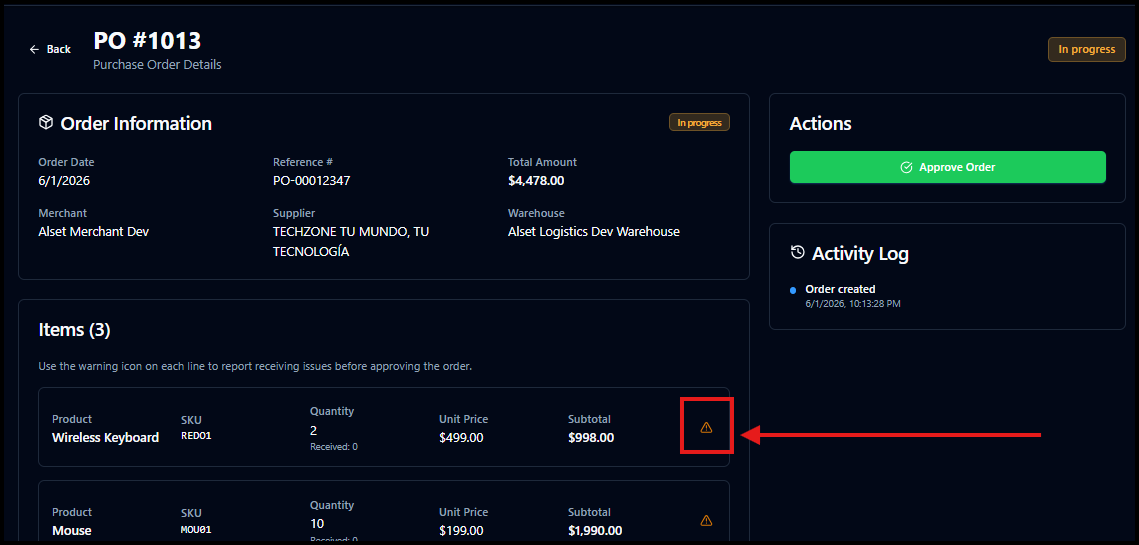
When selected:
The product quantity becomes editable.
An incidence form is displayed for that product.
Additional fields become available to document the adjustment.
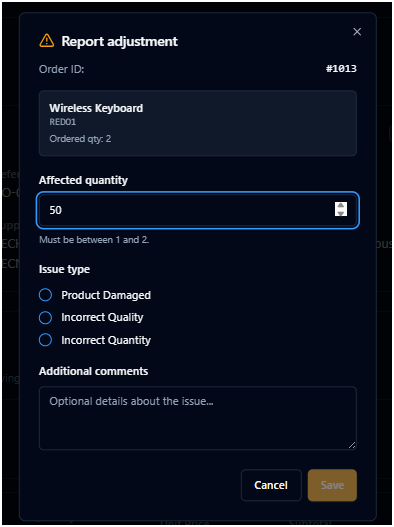
Recording the Quantity Adjustment
After opening the incidence form:
Update the quantity to match the amount actually received.
Select the appropriate adjustment reason from the available options.
Enter additional notes explaining the discrepancy.
Examples include:
"2 units damaged during receiving."
"Received quantity differs from packing slip."
"1 unit missing from shipment."
"Received 5 additional units not listed on PO."
The note should clearly explain why the quantity was modified.
Applying the Incidence
After entering the updated quantity and reason:
Click Apply.
The adjustment is attached to the product line item.
The affected item is visually highlighted to indicate that an adjustment has been recorded.
The Purchase Order remains available for approval and continues through the normal receiving workflow.
Approving the Purchase Order
Once all products have been reviewed:
Confirm the received quantities.
Verify any product adjustments that were recorded.
Click Approve Purchase Order.
When approved:
The Purchase Order is immediately marked as Approved.
Inventory is updated using the adjusted quantities.
Recorded incidences are saved as part of the receiving history.
The approval workflow continues without interruption.
Incidences are informational records and do not prevent approval.
Merchant Visibility
When a Purchase Order contains adjusted products, the Merchant can view the details directly from the Purchase Order.
For each affected product, the Merchant can see:
Original quantity
Updated quantity
Adjustment note
Reason provided by the 3PL
The adjustment information appears directly beneath or alongside the affected product line item within the Purchase Order details page.
This allows Merchants to understand exactly what was received and why any changes were made.
Merchant Notifications
When a Purchase Order is approved with product adjustments, the Merchant is automatically notified.
Notifications include:
Email notification
In-platform notification (Top right corner)
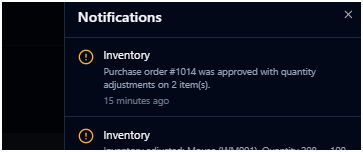
The notification informs the Merchant that:
The Purchase Order has been approved.
Product quantities were adjusted during receiving.
Adjustment reasons were provided by the 3PL.
Merchants can open the Purchase Order directly from the notification to review the affected products and adjustment details.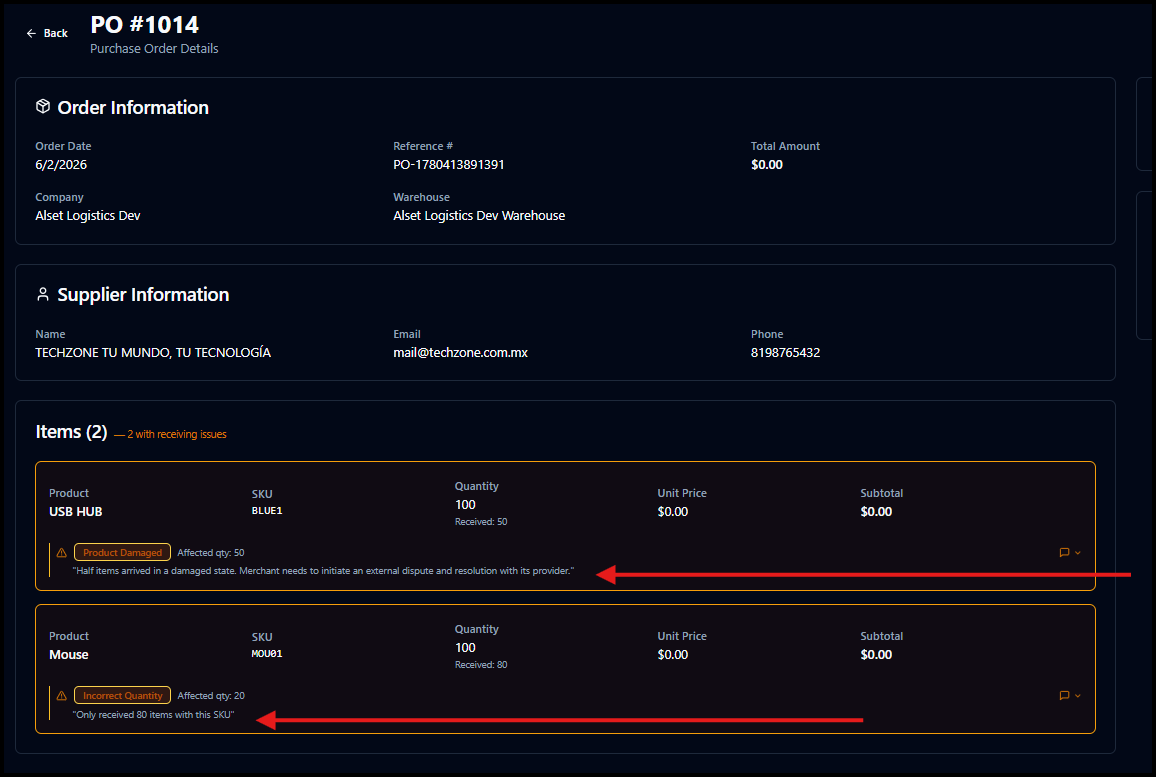
Audit History and Traceability
All product adjustments are stored as part of the Purchase Order history.
Adjustment records include:
Original quantity
Updated quantity
Adjustment reason
User who performed the adjustment
Date and time of the change
This information provides a complete audit trail for receiving operations and inventory reconciliation activities.
Operational Workflow Summary
Open the Purchase Order.
Review received quantities.
Click the Exclamation Icon on any product with a discrepancy.
Update the received quantity.
Select a reason and enter notes.
Apply the incidence to the product.
Repeat for additional products if necessary.
Approve the Purchase Order.
The Merchant receives notifications and can review all adjustments directly within the Purchase Order.
Product incidences serve as receiving adjustment records that provide transparency between the 3PL and Merchant while allowing the Purchase Order approval process to continue without delays.
Was this article helpful?
That’s Great!
Thank you for your feedback
Sorry! We couldn't be helpful
Thank you for your feedback
Feedback sent
We appreciate your effort and will try to fix the article