Sales Orders: Packing Slips and Shipping Labels
Overview
3PLICITY simplifies Sales Order creation by allowing Merchants to upload packing slips and shipping labels to automatically populate order information.
Using GPT5 scanning, 3PLICITY can extract relevant information from uploaded documents, reducing manual data entry and helping streamline the order creation and fulfillment process.
Creating a Sales Order
Merchants can create Sales Orders manually or use a packing slip to automatically populate order information.
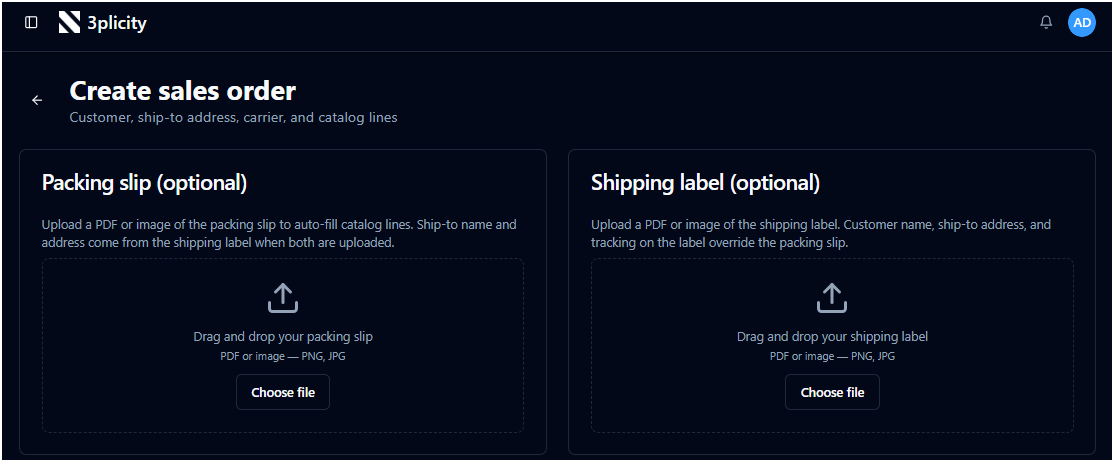
To create a Sales Order using a packing slip:
Navigate to Sales Orders.
Select Create Sales Order.
Choose the option to upload a packing slip.
Select the packing slip from your device.
Allow 3PLICITY to scan and process the document.
The system uses GPT5 scanning to identify relevant information from the packing slip, including:
Customer
Shipping address
Items included in the order
SKU information
The extracted information is then used to populate the Sales Order.
SKU Matching
When a scanned SKU matches an item already registered in your inventory, 3PLICITY automatically selects the corresponding item.
If no matching SKU is found, a conflict notification is displayed.
You can resolve the conflict by manually selecting the inventory item that corresponds to the item identified on the packing slip.
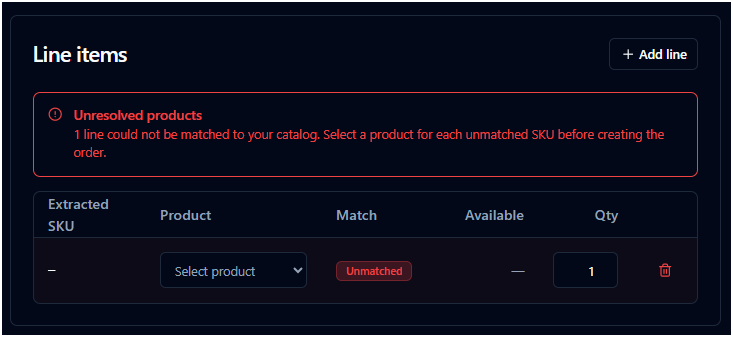
This allows you to review and resolve item matching before completing the Sales Order.
Adding a Shipping Label
A shipping label can be uploaded to a Sales Order to provide or update shipping information.
To upload a shipping label:
Open the Sales Order.
Locate the Shipping Label section.
Select the option to upload a shipping label.
Choose the shipping label from your device.
Allow 3PLICITY to process the document.
The shipping label can provide or update the following information:
Shipping address
Carrier
Shipping method
Tracking number
The extracted information is associated with the Sales Order and can be used during the fulfillment and shipping process.
Shipping Label and Fulfillment
Once the Sales Order has been approved, the order can proceed to fulfillment.
During fulfillment, the 3PL can add the required box or container and scan the items being prepared for shipment.
After all items have been processed, the shipping label associated with the Sales Order must be scanned to complete the shipping process.
Important: Use the Order's Shipping Label
The shipping label scanned during fulfillment must be the same shipping label associated with the Sales Order.
If a different shipping label is scanned, the shipment cannot be unlocked for processing.
Once the correct shipping label is scanned, the order can proceed to the shipping stage.
Automatic Information Extraction
Document scanning allows information from packing slips and shipping labels to be transferred directly into the Sales Order.
Depending on the document, 3PLICITY can identify and populate customer, item, address, carrier, shipping method, and tracking information.
The Merchant can review and modify the information before completing the order, while the 3PL can use the shipping information during fulfillment and shipment processing.
Was this article helpful?
That’s Great!
Thank you for your feedback
Sorry! We couldn't be helpful
Thank you for your feedback
Feedback sent
We appreciate your effort and will try to fix the article