How to Sign In to the Platform
To access your BeautySnap account, follow the steps below to successfully sign in. Ensure you have already registered and confirmed your email before attempting to log in.
Step-by-Step Sign-In Instructions
Navigate to the BeautySnap main page
Open your browser and go to the BeautySnap homepage. The login panel will be displayed.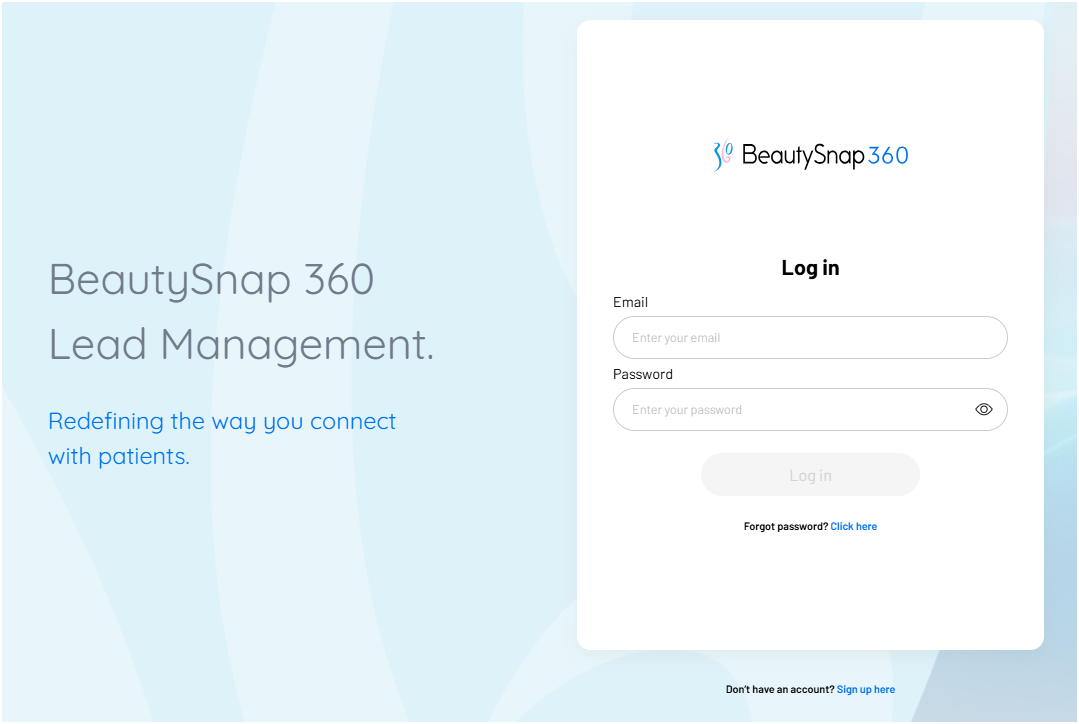
Enter your login credentials
In the Email field, type your registered email address.
In the Password field, enter your password.
Once both fields are completed, the Log In button becomes active.
Click Log In
Click the active Log In button to submit your credentials.
If the information is valid, you’ll be redirected to your main dashboard.
Error Handling and Input Validation
BeautySnap includes safeguards to ensure correct information is submitted. Here are common input scenarios and how the platform responds:
Invalid Email Format
If you type an email with invalid domains, missing "@" symbols, or plain text that doesn’t follow standard email format, an error message will prompt you to correct it.Email with Numbers or Special Characters
If invalid characters are used in the email field, the system flags the input with an error message.Unregistered Email Address
Entering an email not associated with any account will trigger an error response after clicking Log In.Blank Email or Password Field
If either the email or password field is left blank, the Log In button remains disabled and will not allow you to proceed.Invalid Password
Entering an incorrect password for a valid account results in an error message prompting correction.
Following these guidelines ensures a smooth login experience. If you continue to have issues accessing your account, consider using the “Forgot Password” option or contact support.
Was this article helpful?
That’s Great!
Thank you for your feedback
Sorry! We couldn't be helpful
Thank you for your feedback
Feedback sent
We appreciate your effort and will try to fix the article